File icons
File-type icons for non-image thumbnails, and icons of your own.
Payload shows the same blank page for every file that is not an image. The plugin draws the file's type onto that page: PDF, Word, Excel, PowerPoint, CSV, text, Markdown, JSON, code, image, audio, video and archives each get a coloured badge, and other files keep Payload's blank page.
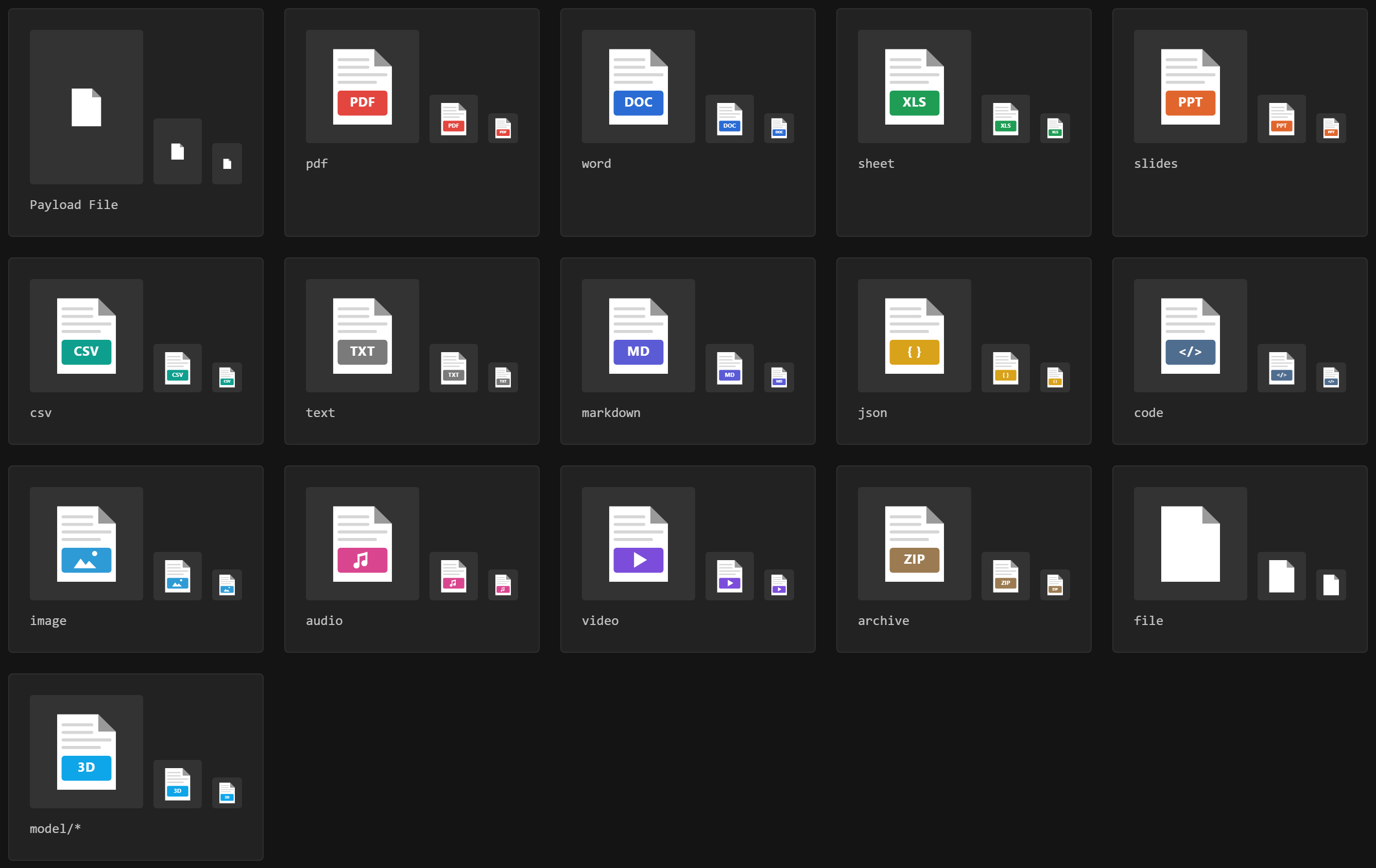
The icons appear wherever Payload shows a thumbnail for a document of an enabled collection: the list view, upload fields in other collections, and the edit view's upload area.
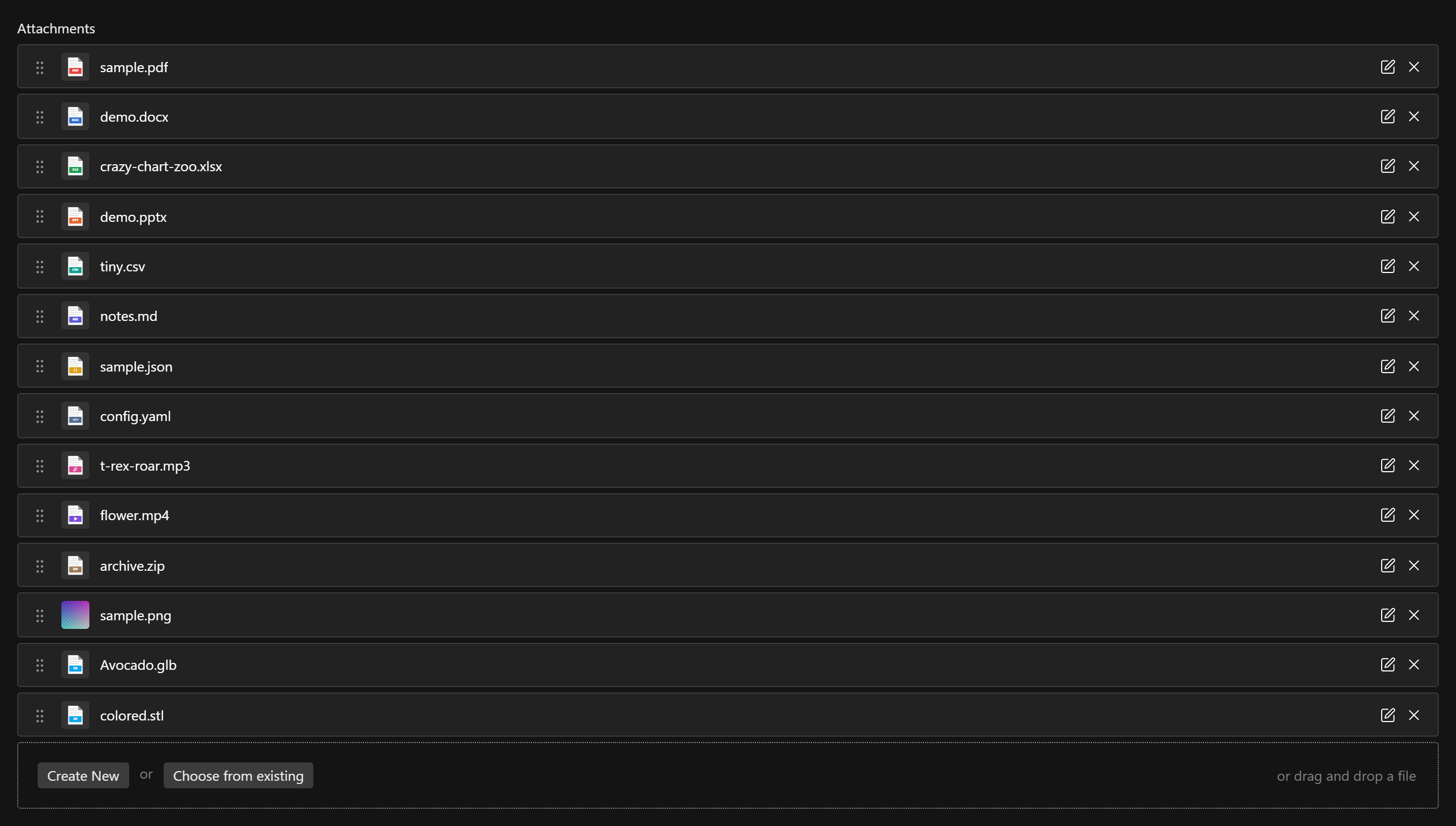
At list-row size the badge's label is too small to read, so the colour carries the type; in the edit view's upload area the label reads clearly. The info card uses the same icons.
How it works
The plugin adds an afterRead hook to the collection's thumbnailURL field. Payload merges it into its own upload field and runs it after Payload's own hook, so the plugin only fills a thumbnailURL that is still empty on a file that is not an image. Image sizes, storage adapters and your upload.adminThumbnail keep precedence: a function of yours that returns a URL for PDFs wins over the plugin's PDF icon.
The URL points at an endpoint the plugin adds, /api/document-preview/file-icon/<type>, which serves the SVG:
- to signed-in users only. The icons exist for the admin; an open endpoint would be a small public CDN on your bill. A request without a user gets
401, so a REST client without auth sees the URL but cannot load it. - cached privately for a year. The URL carries a hash of every icon's markup, so new artwork, or a change to your own icons, changes the URL instead of fighting the cache.
Your own icons
Pass fileIcons an object with types, keyed by mime pattern like viewers: an exact mime, or type/*. Yours are matched before the built-in families.
documentPreview({
  collections: { media: true },
  fileIcons: {
    types: {
      // A badge on the plugin's page, in the built-in style.
      'model/*': { color: '#0EA5E9', label: '3D' },
      // A complete icon of your own, best square.
      'application/x-sketch': { svg: '<svg xmlns="http://www.w3.org/2000/svg" viewBox="0 0 150 150">...</svg>' },
    },
  },
})| Shape | |
|---|---|
{ label, color } | The plugin's page with your badge. Keep the label to about four characters; longer ones shrink to fit. color is any CSS colour. |
{ svg } | Your own SVG document. It is served with a script-free Content-Security-Policy and only ever shown through <img>, so scripts in it never run. |
A malformed pattern, an svg that is not an SVG document, or a badge without a label or colour stops the config from loading.
Turning them off
documentPreview({
  fileIcons: false, // the default for every collection
  collections: {
    media: true, // inherits: Payload's blank page
    documents: { fileIcons: true }, // a collection overrides the default
  },
})
With icons off for every collection, the plugin adds neither the hook nor the endpoint. The info card keeps its icon either way: it inlines the SVG and needs no request.