Surfaces
Where previews appear in the admin, and how to put one anywhere else.
Each enabled collection chooses its surfaces with display and listView. All of them show the saved file of the document they belong to, through the same viewers.
Drawer
display: 'drawer', the default. A Preview button sits beside Save in the edit view and opens the file in a drawer as wide as the window. The viewer only mounts while the drawer is open, so a document view that never opens it loads no viewer code.
Press Esc or the close button to return to the form.
Inline
display: 'inline' places the preview above the collection's fields, directly under Payload's upload area, at a fixed height with its own scrolling. display: 'both' shows the inline preview and keeps the drawer button for a larger view.
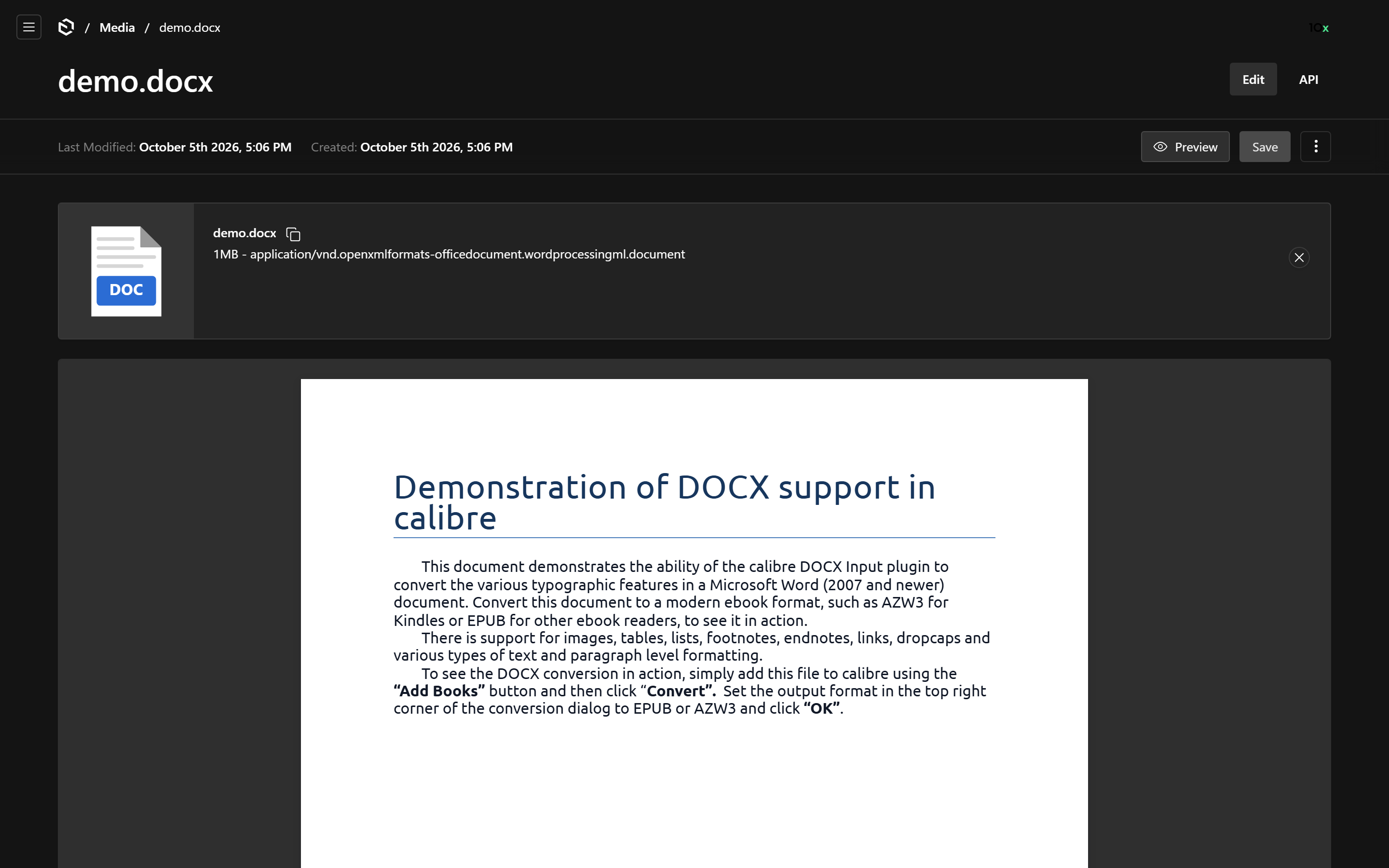
An inline preview starts inert: the mouse wheel scrolls the form, not the document. Hovering shows Click to interact; one click hands the wheel, zoom and keyboard to the viewer, and a click anywhere outside hands them back. Files without a viewer, which only show the info card, skip this.
The inline preview is a UI field named documentPreview, placed first in the collection's fields. It stores nothing, and the plugin refuses to start if the collection already has a field of that name.
List view
listView: true appends a Preview column to the list view, with the same button as the edit view. If the collection sets admin.defaultColumns, the column is added to them; otherwise pick it from Columns.
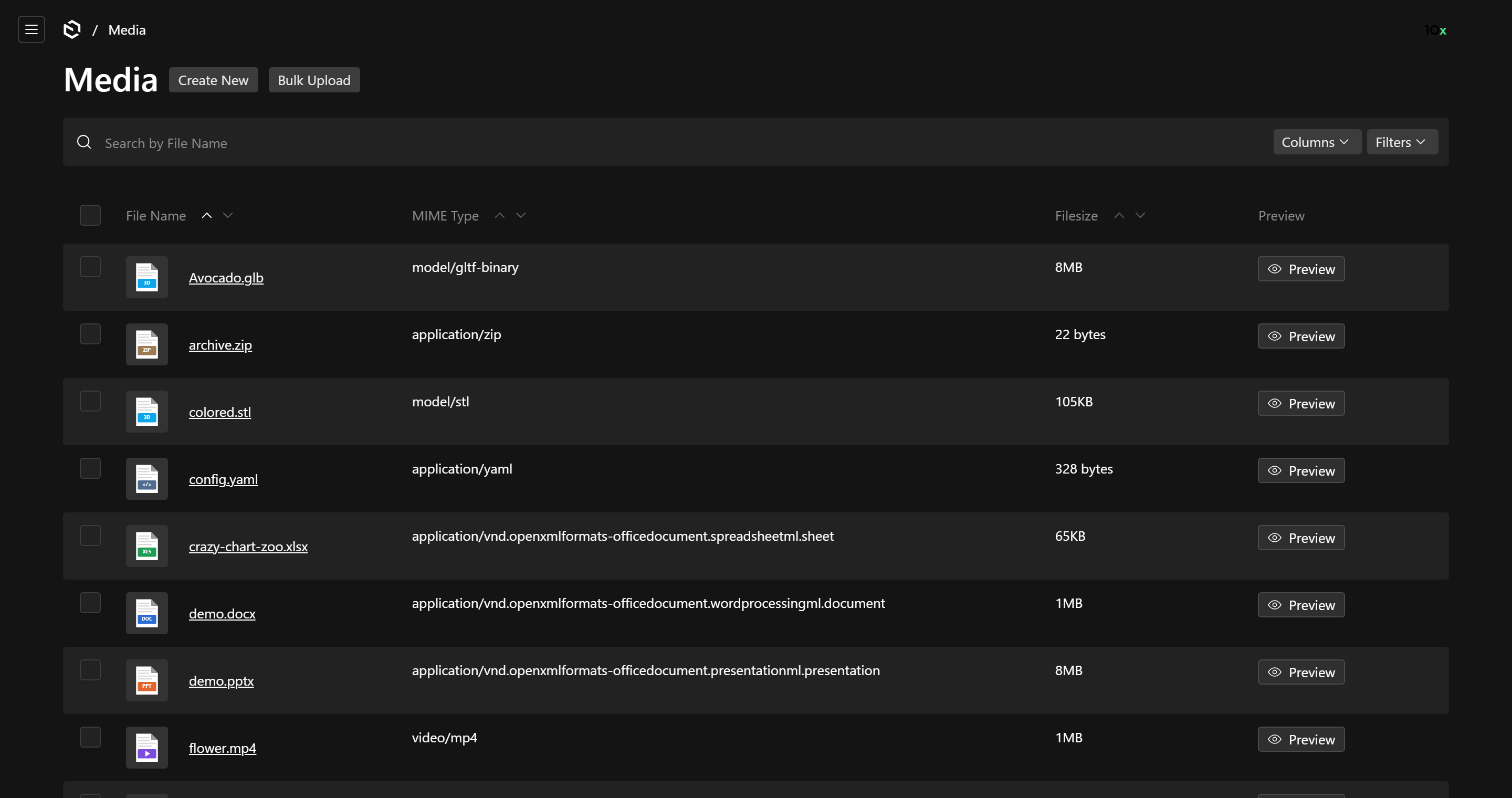
The drawer for a row mounts on the first click, so a page of fifty rows does not carry fifty hidden drawers. The column is a UI field named documentPreviewColumn.
File sizes
Independently of listView, the plugin shows filesize as 1.2 MB rather than Payload's raw byte count. It declares only a Cell on filesize, which Payload merges into its own upload field, so the field keeps Payload's type, label and settings. A Cell your collection already sets on filesize wins. Turn it off with filesizeCell: false on the collection.
In your own components
DocumentPreview is the viewer the surfaces use, exported for custom views, fields and dashboards. It fills its container, so give the container a height.
'use client'

import { DocumentPreview } from '@10x-media/document-preview/client'

export const AttachmentPreview = ({ doc }: { doc: Record<string, unknown> }) => (
  <div style={{ height: 480 }}>
    <DocumentPreview collection="media" doc={doc} interactOnClick />
  </div>
)| Prop | |
|---|---|
doc | The upload document. It needs url and filename; mimeType and filesize are used when present. Renders nothing without a file. |
collection | The upload collection's slug, so that collection's viewer overrides apply. |
interactOnClick | Start inert until clicked, as the inline preview does. Use it when the preview sits inside a scrolling page. |
className | Added to the preview's root. |
For a drawer of your own, PreviewDrawer is the drawer the button opens. It takes a modal slug from Payload's useDrawerSlug and opens with useModal().openModal(slug):
'use client'

import { Button, useDrawerSlug, useModal } from '@payloadcms/ui'
import { PreviewDrawer } from '@10x-media/document-preview/client'

export const OpenContract = ({ doc }: { doc: Record<string, unknown> }) => {
  const slug = useDrawerSlug('contract-preview')
  const { openModal } = useModal()
  return (
    <>
      <Button onClick={() => openModal(slug)}>Open contract</Button>
      <PreviewDrawer collection="media" doc={doc} slug={slug} title="Contract" />
    </>
  )
}
Both read the host's viewer overrides and file icons from a provider the plugin registers for the whole admin, so they work anywhere in it without passing the plugin's config along.
Previews do not appear on upload fields of other collections. To look at an attachment from a document that references it, open the attachment's own document (the pencil on the upload field opens it in a drawer) and preview it there.